HELP GUIDE
Useful pages.
HELP GUIDE
Well you’re here so you probably don’t need a link to this page. :) Help Guide
Note: The header and footer have been disabled as a precaution to ensure the navigation doesn’t get edited by mistake.
The Sandbox
A page that you can experiment and try things out while you’re getting used to the new platform. The Sandbox
Note: The header and footer have been disabled as a precaution to ensure the navigation doesn’t get edited by mistake.
ART GALLERY HOW TO PAGE
Instructional page on how to best create a new gallery page. How To Page
ART GALLERY TEMPLATE
A template in draft mode that you can duplicate and then edit after reading the How To Page. Template Page
EVENTS PAGE TEMPLATE
The events page template has been created as a placeholder. It is unlinked and disabled for now. Events Page
Note: the events page currently functions the same as the older version of Squarespace so it may feel wrong when you open it for the first time but they haven’t updated how it functions yet as of end of Aug 2026.
BACKUP pages.
Emergency backup pages. In case something goes sideways, there are duplicate pages saved in the unlinked section that can be brought back in if needed. These pages are saved from the last iteration made Aug 27th, 2026.
Note: The header and footer have been disabled as a precaution to ensure the navigation doesn’t get edited by mistake.
To turn them back on, click settings (gear icon) select navigation and toggle the header and footer on then save.
Home PAGE BACKUP
ABOUT BACKUP
BOOKS BACKUP
ART BACKUP(SORT OF)
Note: the ART SECTION and the way it is built cannot be backed up like the above but the main ART page and HOW the gallery template was constructed have been saved. If this ever needs to be resurrected please just email me. I’m not sure I can explain how to fix it.
SAVED SECTIONS.
Saved sections are accessible when you click add section to any page you’re working on. The saved sections created from the redesign include templates from: banners, gallery, art banner copy, artist statement, title header, photo credit copy, book listings (grey and white) and the original slideshow before edits (in case you want to refer to the original content) and instagram block (now archived from the site but saved in case you wish to re-add in the future.) Example below. There are 2 pages of saved sections.
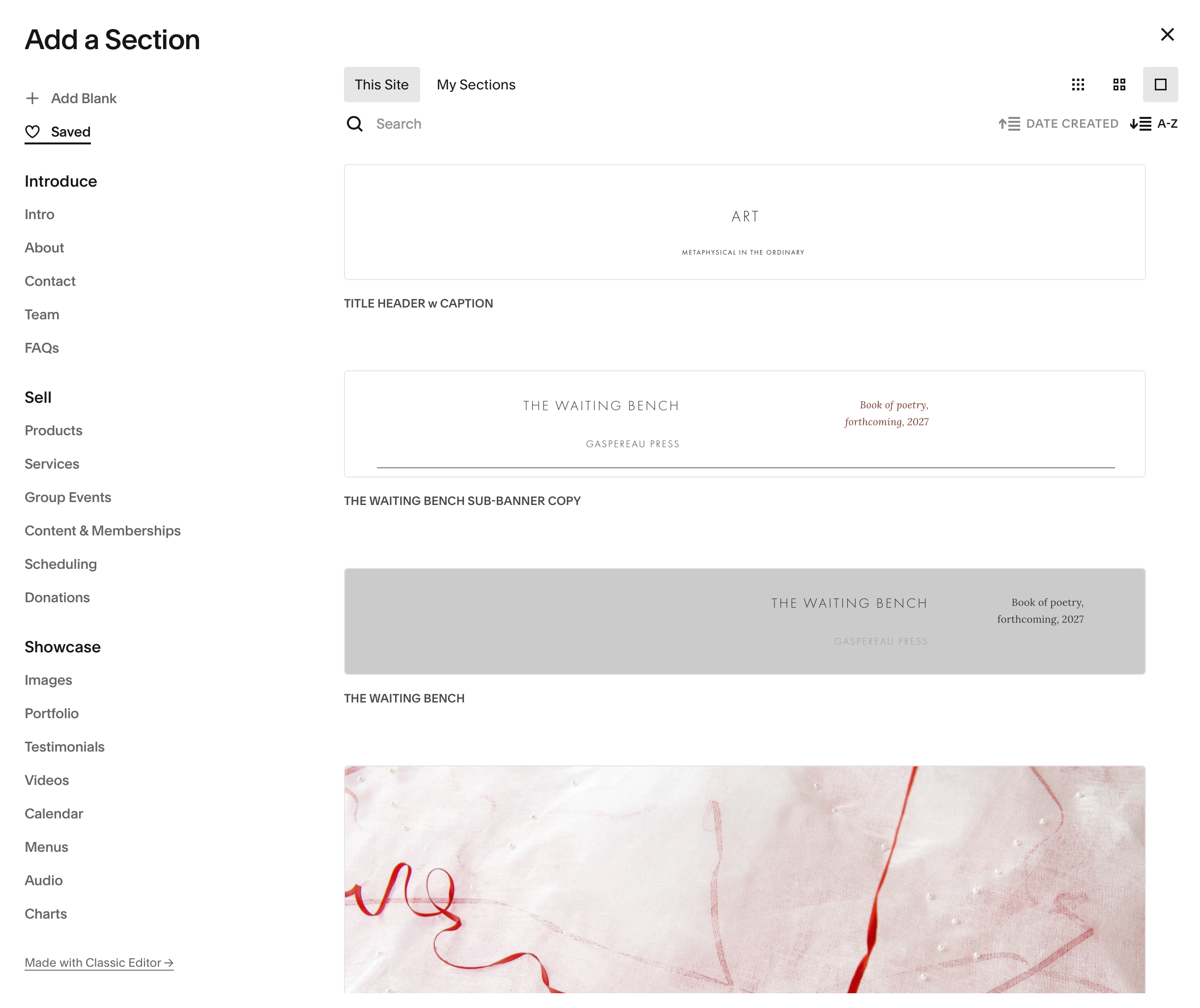
The easiest way to view the saved sections is to select the square icon at the top right which will show them individually and slightly larger. Example below.

ASSET library.
I have made folders for each art gallery, the slideshow & books. The help guide assets is where the screenshots used here are organized. Example below.
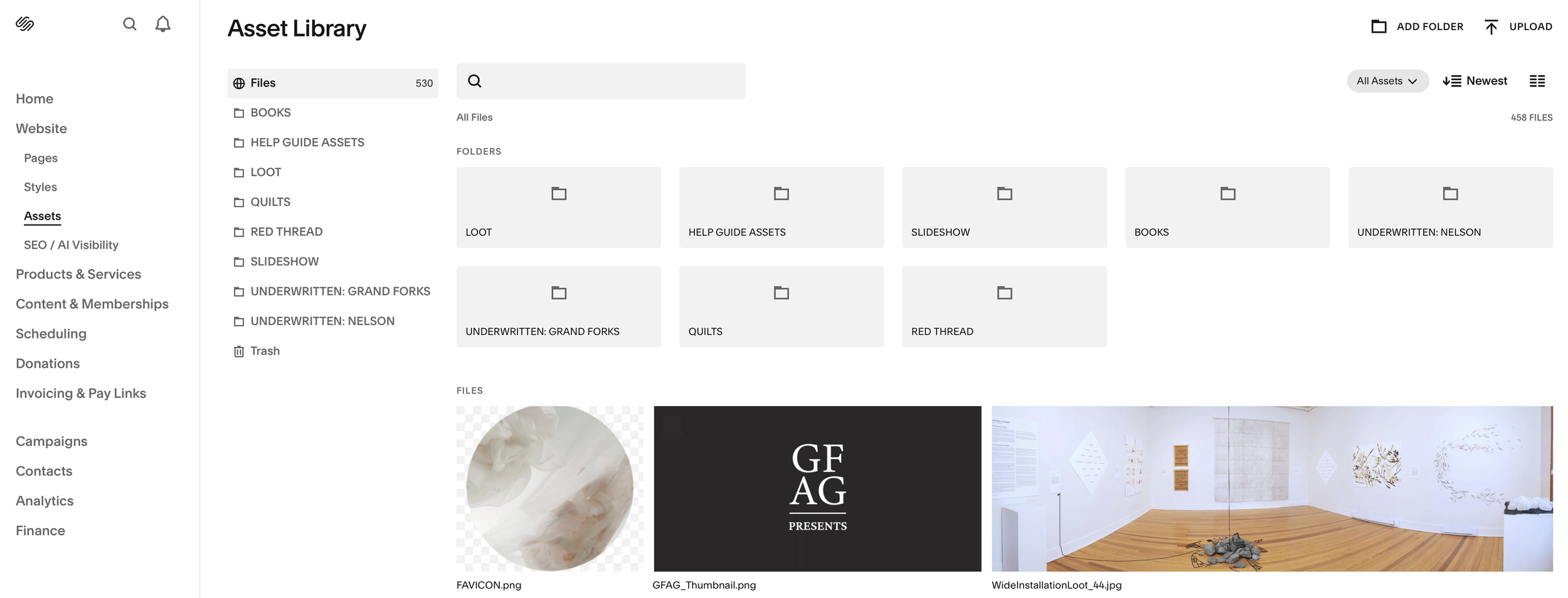
To add or move images into a folder hover over the image and select the 3 dots and select Move. A menu of folders will appear for your to organize your images.
SQUARESPACE OFFBOARDING 7.1
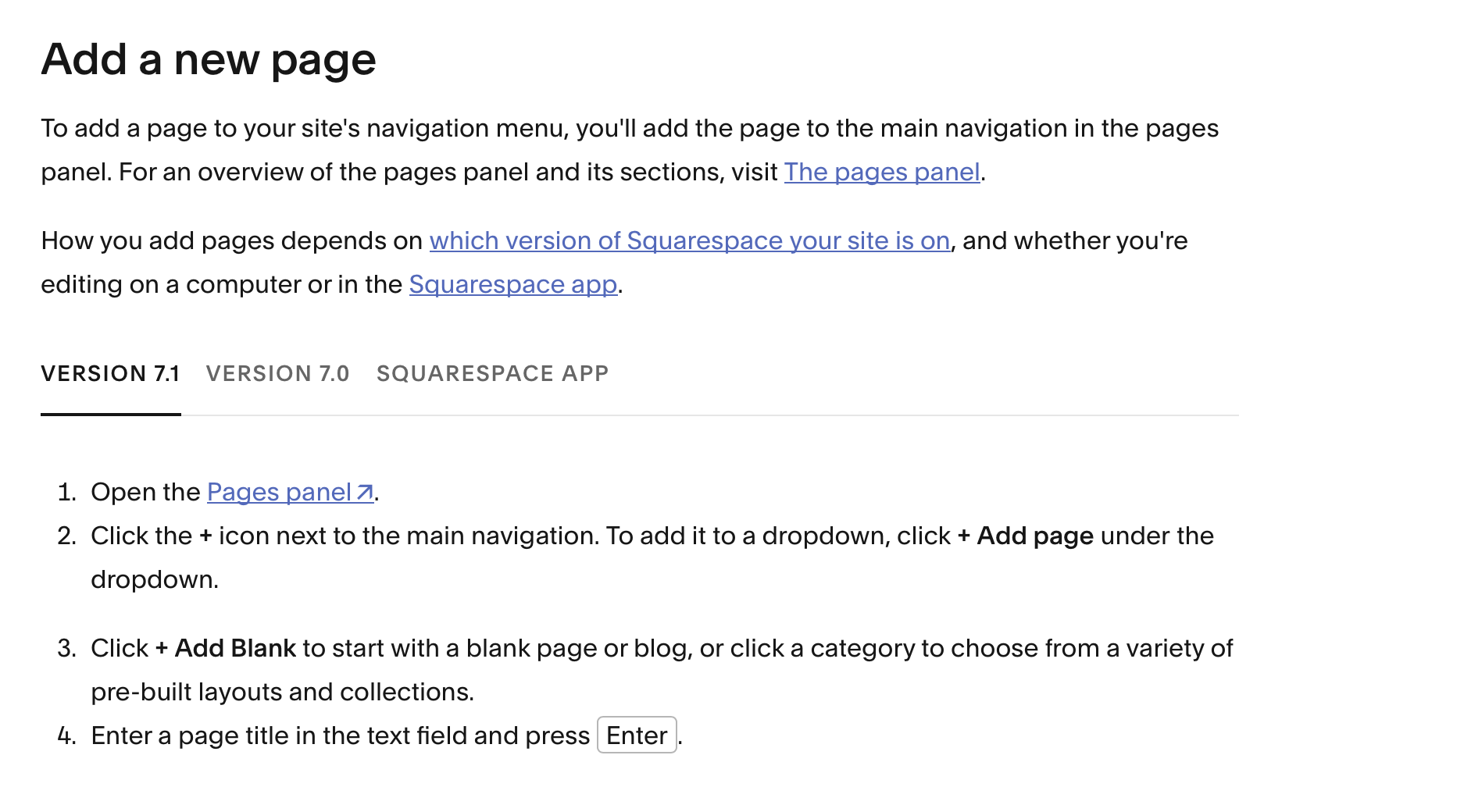
1.Adding New Pages
Note: The video currently used in the example is for 7.0 but the instructions underneath give you a list (screencap on the right) of which version so make sure you’re looking at 7.1. →
https://support.squarespace.com/hc/en-us/articles/205814778-Adding-pages-to-your-navigation
2. Adding Images or Video
https://support.squarespace.com/hc/en-us/articles/206733028-Video-Series-All-About-Images
3. Adding a Blog
https://support.squarespace.com/hc/en-us/articles/206543727-Blogging-with-Squarespace
4. Social Media Sharing
I am always happy to answer any questions I can but if need be, you can always message Squarespace directly.
Squarespace Customer Support
WEBSITE STYLES
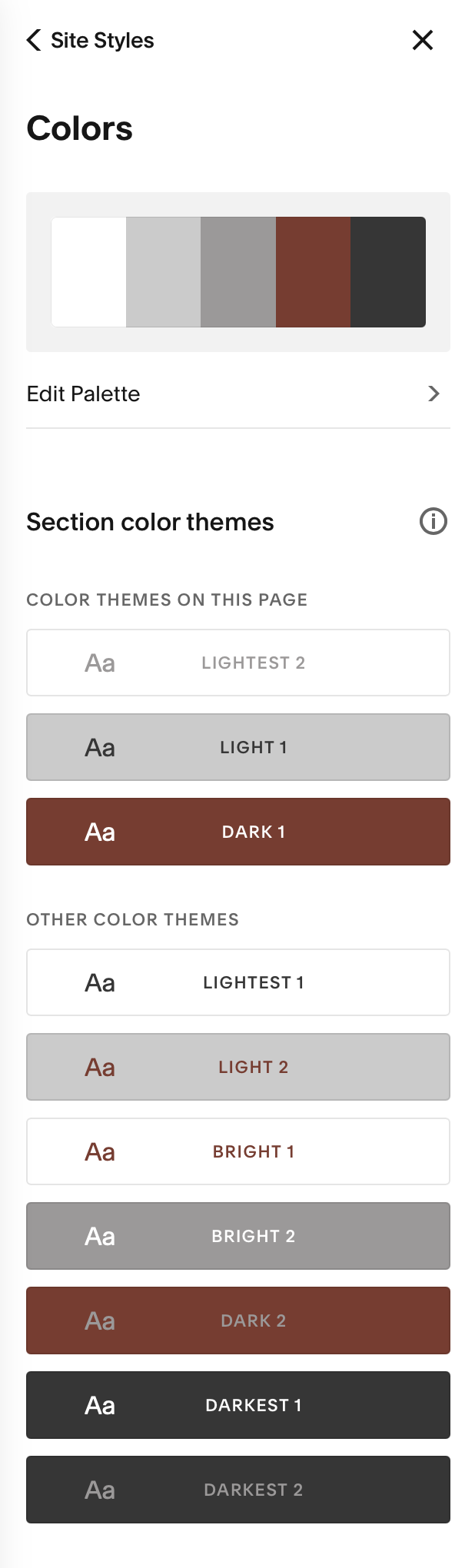
Colour palette:
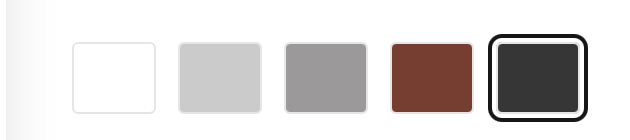
white #FFFFFF
light grey #CCCCCC
grey #9E9A9A
drk red #863A2D
drk grey #333333
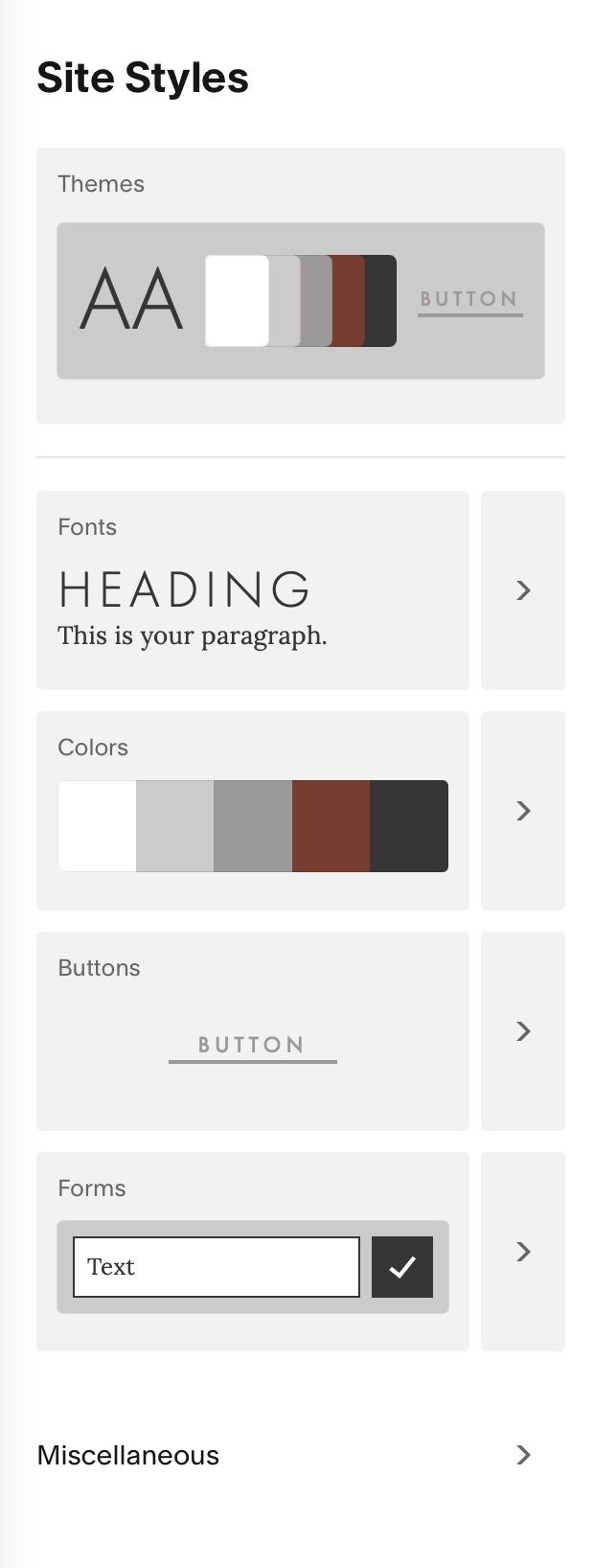
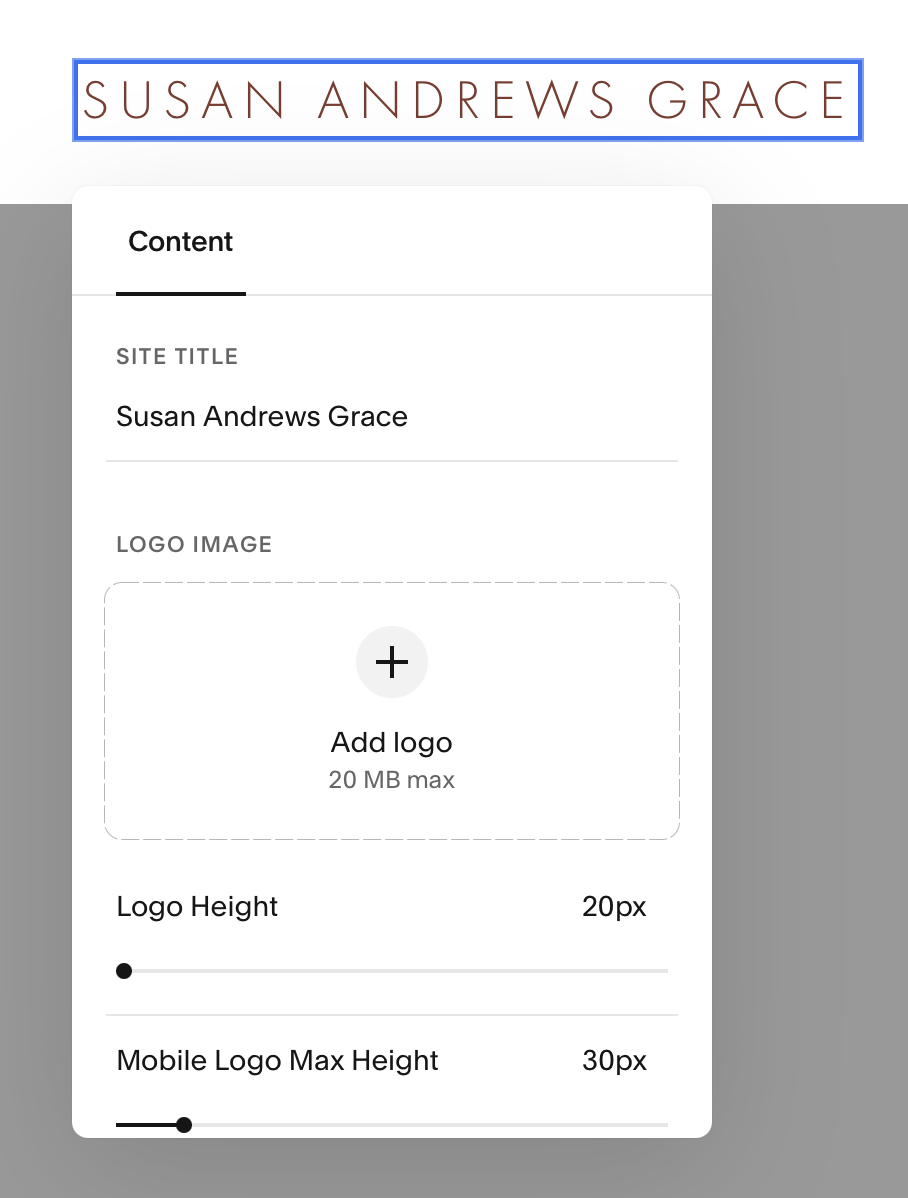
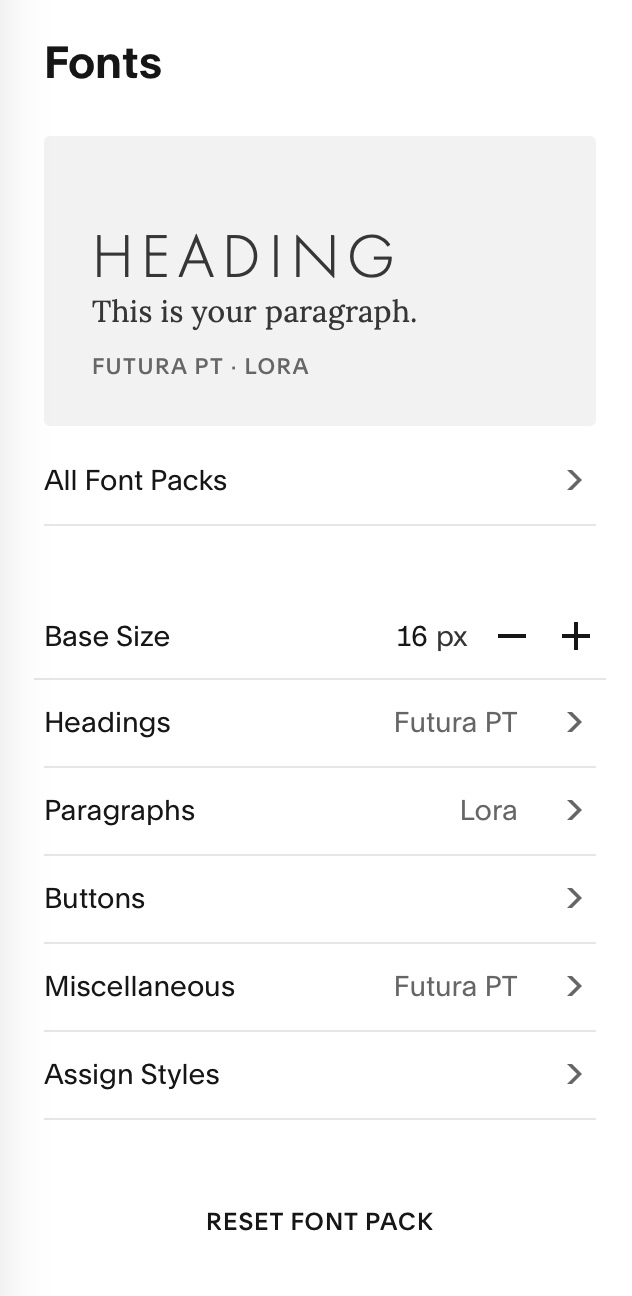
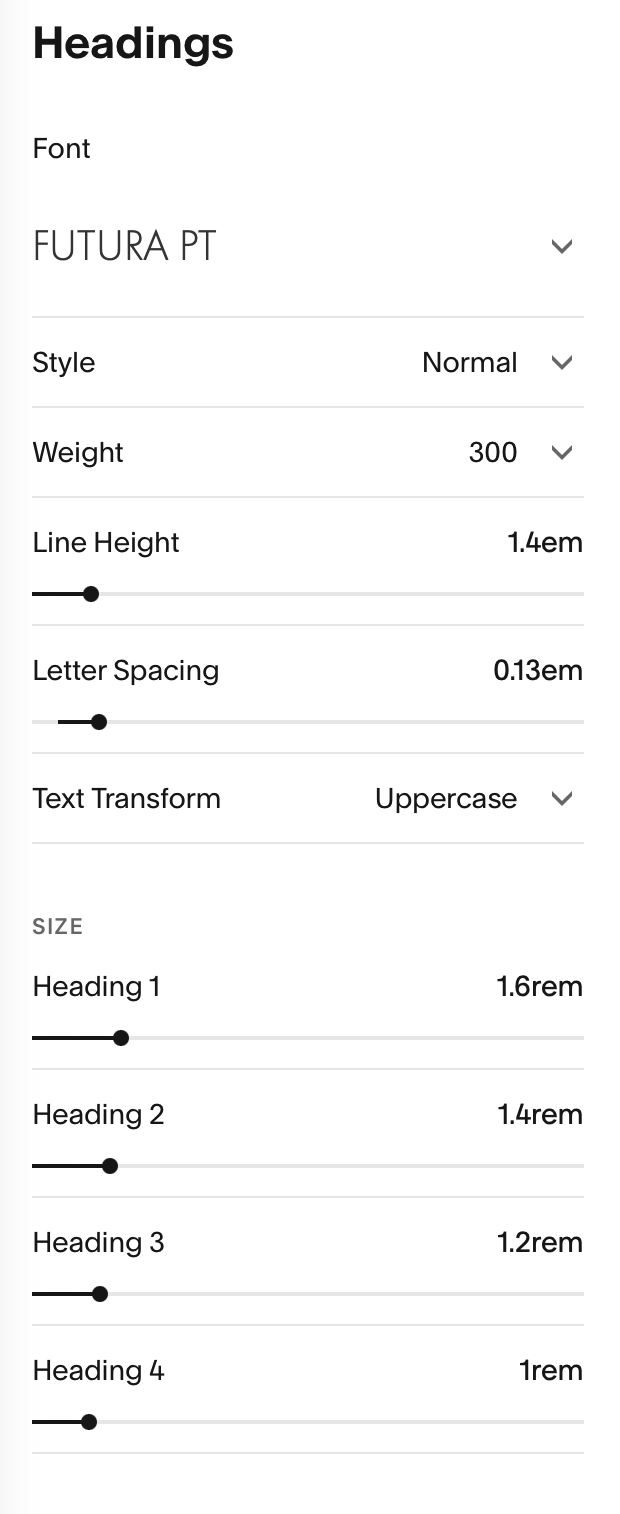
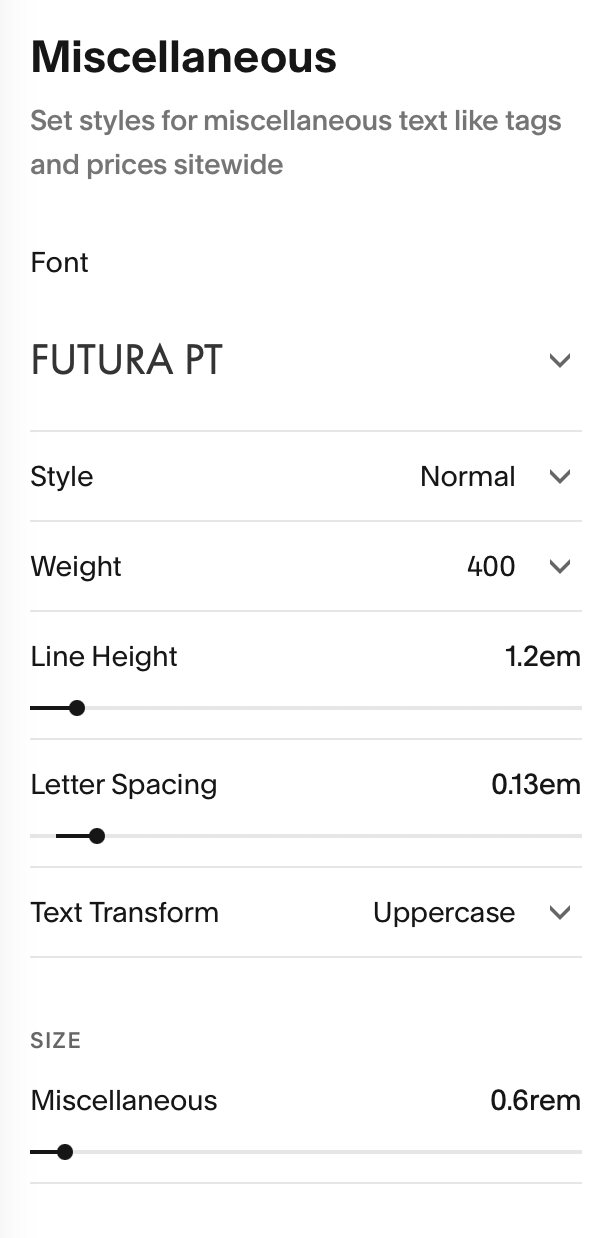
fonts:
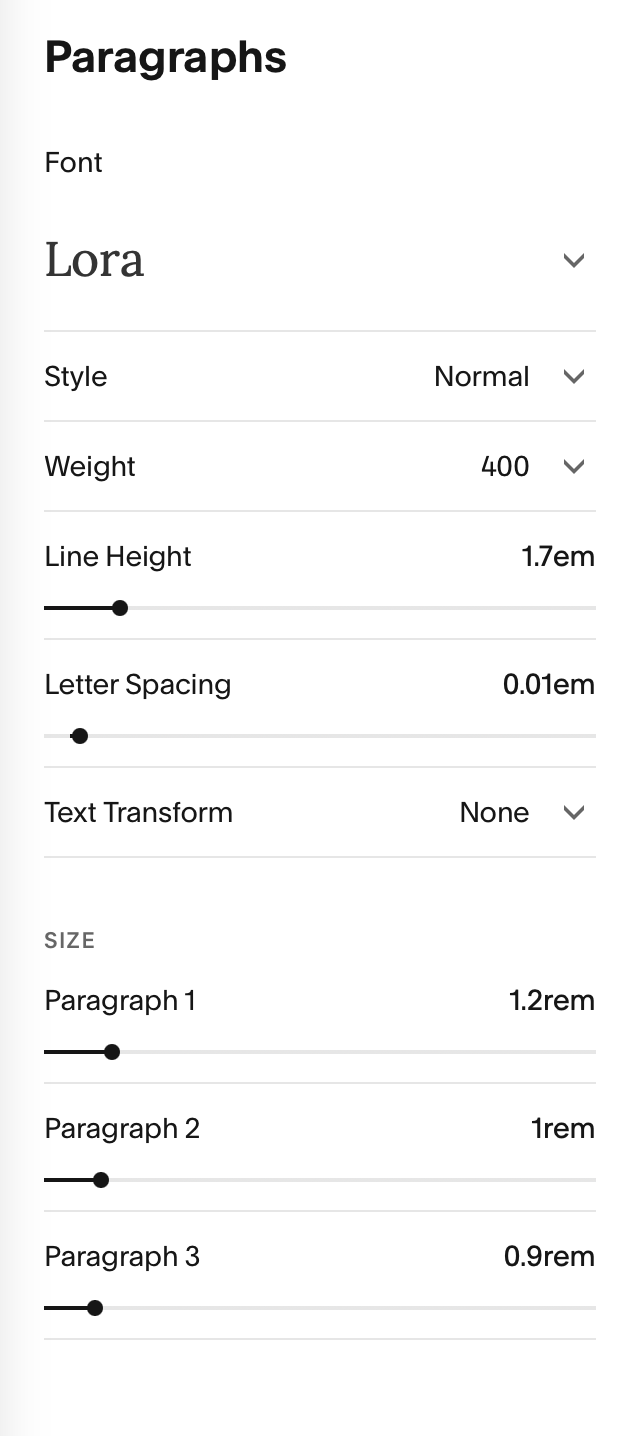
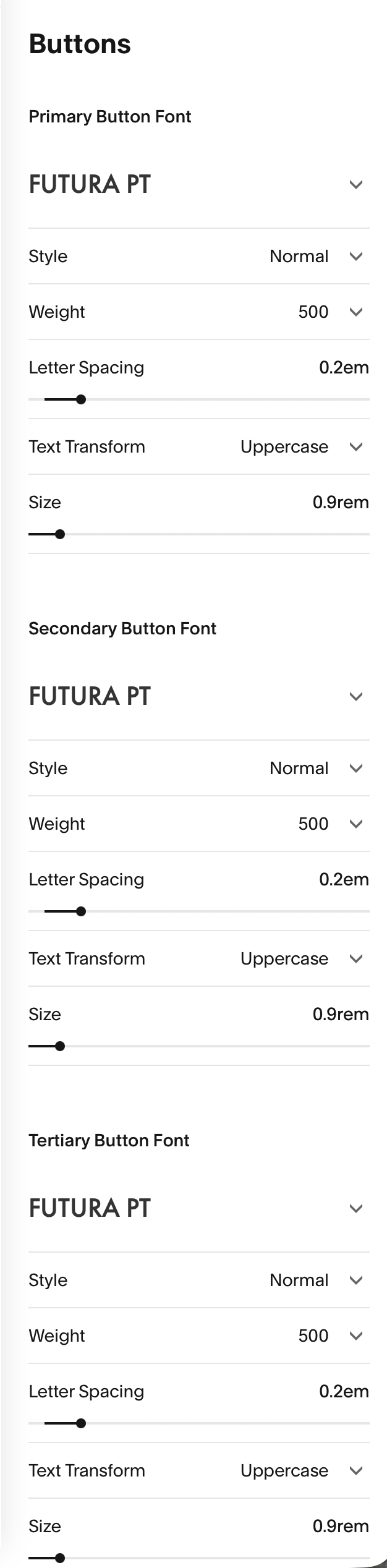
HEADING: FUTURA PT
Paragraph: LORA